
iScreensaver
| |

|
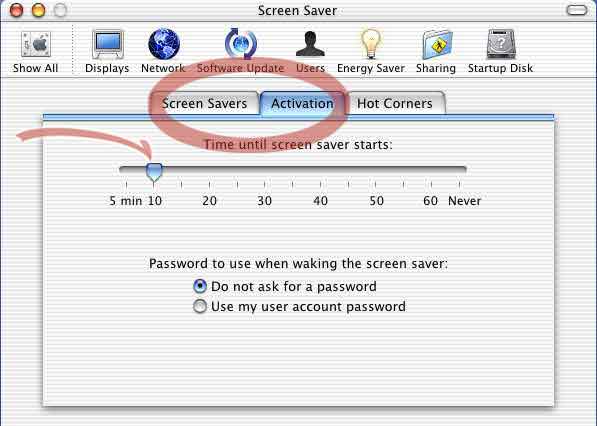
Step 1 of 2: Set the Screen Saver Delay:
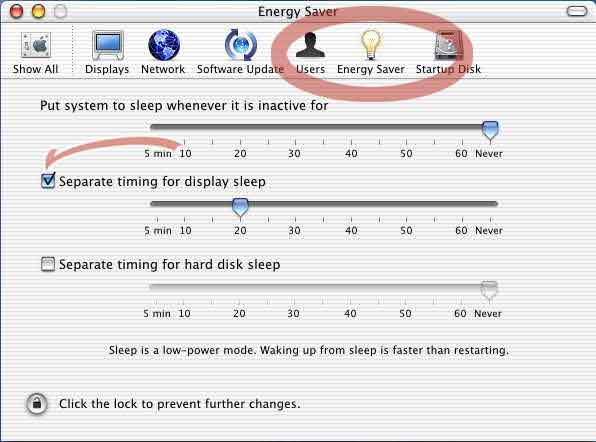
Step 2 of 2: Set the Energy Saver Settings:
return to the Green Screens Campaign |
☰ Copyright ©1995-2021
copyright ©1995-2024.
xochi media inc
Xochi™, XochiMedia™, iScreensaver™, iScreensavers™, iScreensaver Designer™,
iScreensaver Classic™, iScreensaver Personal™, and the DoubleRing logo are trademarks of Xochi Media Inc.
Space imagery courtesy nasa.gov and ESA/Hubble; no NASA or ESA endorsement, nor sponsorship of iScreensaver implied.
All other trademarks are the property of their respective owners. Created for you in California.
We strongly support the international Paris Agreement - together Screensavers and EnergyStar save energy.
Space imagery courtesy nasa.gov and ESA/Hubble; no NASA or ESA endorsement, nor sponsorship of iScreensaver implied.
All other trademarks are the property of their respective owners. Created for you in California.
We strongly support the international Paris Agreement - together Screensavers and EnergyStar save energy.